Friday, 13 January 2017

MODULE 3: ENTERING DATA INTO SPSS

3.1 ENTERING DATA INTO THE DATA EDITOR
When you first load SPSS it will provide a blank data editor with the title Untitled1. When inputting a new set of data, you must input your data in a logical way. The SPSS Data Editor is arranged such that each row represents data from one entity while each column represents a variable. There is no discrimination between independent and dependent variables: both types should be placed in a separate column. The key point is that each row represents one entity’s data (be that entity a human, mouse, tulip, business, or water sample). Therefore, any information about that case should be entered across the data editor. For example, imagine you were interested in sex differences in perceptions of pain created by hot and cold stimuli. You could place some people’s hands in a bucket of very cold water for a minute and ask them to rate how painful they thought the experience was on a scale of 1 to 10. You could then ask them to hold a hot potato and again measure their perception of pain. Imagine I was a participant. You would have a single row representing my data, so there would be a different column for my name, my gender, my pain perception for cold water and my pain perception for a hot potato: Abayomi, male, 8, 10. The column with the information about my gender is a grouping variable: I can belong to either the group of males or the group of females, but not both. As such, this variable is a between-group variable (different people belong to different groups). Rather than representing groups with words, in SPSS we have to use numbers. This involves assigning each group a number, and then telling SPSS which number represents which group. Therefore, between group variables are represented by a single column in which the group to which the person belonged is defined using a number. For example, we might decide that if a person is male then we give them the number 0, and if they’re female we give them the number 1. We then have to tell SPSS that every time it sees a 1 in a particular column the person is a female, and every time it sees a 0 the person is a male. Variables that specify to which of several groups a person belongs can be used to split up data files. Finally, the two measures of pain are a repeated measure (all participants were subjected to hot and cold stimuli). Therefore, levels of this variable can be entered in separate columns (one for pain to a hot stimulus and one for pain to a cold stimulus). The data editor is made up of lots of cells, which are just boxes in which data values can be placed. When a cell is active it becomes highlighted in blue. You can move around the data editor, from cell to cell, using the arrow keys (found on the right of the keyboard) or by clicking the mouse on the cell that you wish to activate. To enter a number into the data editor simply move to the cell in which you want to place the data value, type the value, then press the appropriate arrow button for the direction in which you wish to move. So, to enter a row of data, move to the far left of the row, type the value and then press (this process inputs the value and then moves you into the next cell on the right).
In summary, there is a simple rule for how variables should be placed in the SPSS Data Editor: data from different things go in different rows of the data editor, whereas data from the same things go in different columns of the data editor. As such, each person (or mollusc, goat, organization, or whatever you have measured) is represented in a different row. Data within each person (or mollusc etc.) go in different columns. So, if you’ve prodded your mollusc, or human, several times with a pencil and measured how much it twitches as an outcome, then each prod will be represented by a column. In experimental research this means that any variable measured with the same participants (a repeated measure) should be represented by several columns (each column representing one level of the repeated-measures variable). However, any variable that defines different groups of things (such as when a between-group design is used and different participants are assigned to different levels of the independent variable) is defined using a single column. This idea will become clearer as you learn about how to carry out specific procedures.


3.2 THE SPSS VARIABLE VIEW WINDOW
This sheet contains information about the data that is stored with the dataset. The following have to be defined for each variable:
  • Name

The first character of the variable name must be alphabetic
Variable names must be unique, and have to be less than 64 characters
Spaces are NOT allowed
  • Type

Click on the type box. The two basic types of variables that you will use are numeric and string. This column enables you to specify the type of variable.

  • Width

Width allows you to determine the number of characters SPSS will allow to be entered for the variable.


  • Decimals

Number of decimals, it has to be less than or equal to 16.

  • Label

You can specify the details of the variable. You can write characters with spaces up to 256 characters.


  • Values

This is used and to suggest which numbers represent which categories when the variable represents a category.

Defining the value labels
Click the cell in the values column as shown below
For the value, and the label, you can put up to 60 characters.
After defining the values click add and then click ok
  • Missing

This column is for assigning numbers to missing data.

  •  Columns

Enter a number into this column to determine the width of the column that is how many characters are displayed in the column. (this differs from ‘width’, which determines the width of the variable itself – you could have a variable of 10 characters but by setting the column width to 8 you would only see 8 of the 10 characters of the variable in the data editor) it can be useful to increase the column width if you have a string variable that exceeds 8 characters, or a coding variable with value labels that exceed 8 characters.
  • Align

You can use this column to select the alignment of the data in the corresponding column of the data editor. You can choose to align the data to the left or right or center.
  • Measure

This is where you define the level at which a variable was measured (nominal, ordinal or scale)
.
3.2.1 LEVELS OF MEASUREMENT
There are three levels of data. They are:

  • Nominal level: Data that is classified into categories and cannot be arranged in any particular order. E.g. eye colour, gender, religious affiliation.
  • Ordinal level: involves data arranged in some order, but the differences between data values cannot be determined or are meaningless. For Example: during a taste test of 4 soft drinks, Pessi was ranked number 1, sprite number 2, seven-up number 3, and Coca-cola number 4.
  • Scale: Scale can either be interval or ratio. Interval level:  to the ordinal level, with the additional property that meaningful amounts of differences between data values can be determined. There is no natural zero point. For Example: temperature on the Fahrenheit scale. While ratio level is the interval with an inherent zero starting point. Differences and ratios are meaningful for this level of measurement. For example: Monthly income of surgeons, or distance travelled by manufacturer’s representatives per month.

3.3 MISSING VALUES
Although as researchers we strive to collect complete sets of data, it is often the case that we have missing data. Missing data can occur for a variety of reasons: in long questionnaires participants accidentally miss out questions; in experimental procedures mechanical faults can lead to a datum not being recorded; and in research on delicate topics (e.g. sexual behaviour) participants may exert their right not to answer a question. However, just because we have missed out on some data for a participant doesn't mean that we have to ignore the data we do have (although it sometimes creates statistical difficulties). Nevertheless, we do need to tell SPSS that a value is missing for a particular case. The principle behind missing values is quite similar to that of coding variables in that we choose a numeric value to represent the missing data point. This value tells SPSS that there is no recorded value for a participant for a certain variable. The computer then ignores that cell of the data editor (it does not use the value you select in the analysis). You need to be careful that the chosen code doesn't correspond to any naturally occurring data value. For example, if we tell the computer to regard the value 9 as a missing value and several participants genuinely scored 9, then the computer will treat their data as missing when, in reality, they are not. To specify missing values, you simply click in the column labelled in the variable view and then click on to activate the Missing Values dialog box in Figure 3.9. By default, SPSS assumes that no missing values exist, but if you do have data with missing values you can choose to define them in one of three ways. The first is to select discrete values (by clicking on the circle next to where it says Discrete missing values) which are single values that represent missing data. SPSS allows you to specify up to three discrete values to represent missing data. The reason why you might choose to have several numbers to represent missing values is that you can assign a different meaning to each discrete value. For example, you could have the number 8 representing a response of ‘not applicable’, a code of 9 representing a ‘don’t know’ response, and a code of 99 meaning that the participant failed to give any response. As far as the computer is concerned it will ignore any data cell containing these values; however, using different codes may be a useful way to remind you of why a particular score is missing. Usually, one discrete value is enough and in an experiment in which attitudes are measured on a 100-point scale (so scores vary from 1 to 100) you might choose 666 to represent missing values because (1) this value cannot occur in the data that have been collected and (2) missing data create statistical problems.

3.4 SPSS KEYWORDS
Using SPSS keywords, especially TO and ALL greatly speeds up a myriad of typical tasks.

SPSS Main Keywords
Expression                              Meaning                                                           Returns
ALL                  all variables (not previously addressed in statement)            Variable(s)
TO                  all variables between and including split outcome of one.        Variable(s)
BY                 split outcome of one variable by values of another.                  Nothing

WITH            compare one variable with another                                           Nothing

Watch out for Module 4, where you will start applying what you have learnt in module 1-3. feel free to contact me for any questions.

Tuesday, 10 January 2017

MODULE 2: THE SPSS ENVIRONMENT

MODULE 2:
2.1 Overview of SPSS for Windows
SPSS for Windows consists of five different windows, each of which is associated with a particular SPSS file type. This document discusses the two windows most frequently used in analysing data in SPSS, the Data Editor and the Output Viewer windows. In addition, the Syntax Editor is briefly discussed.
2.2 Starting SPSS
To start SPSS, go to the Start icon on your Windows computer. You should find an SPSS icon under the Programs menu item then double click it. It will open a dialog box as shown in fig. 2.1, in the dialog box click type in data, then click OK. This will open a standard explorer window (shown in fig. 2.2) that allows you to browse your computer and find the file you want but what if you want to open something other than a data file, for example a viewer document containing the results of your last analysis. You can do this by selecting Open another type of file) and either selecting a file from the list or selecting More Files … and browsing your computer. If you’re starting a new analysis (as we are here) then we want to type our data into a new data editor. Therefore, we need to select Type in data (by again clicking on the appropriate) and then clicking on ok. This will load a blank data editor window.
                Fig. 2.1

            Fig. 2.2

2.2.1 THE DATA EDITOR
SPSS data editor window is SPSS main window (shown in fig. 2.3). This is the only window that’s always open whenever we run SPSS. It’s recognised by red icon in its left top corner. The data editor has two tabs in the left bottom corner: we can click data view for inspecting our data values. Alternatively, variable view shows information regarding the meaning of our data.
                      Fig.2.3
2.2.2 SPSS Syntax Editor Window
Another important window in the SPSS environment is the Syntax Editor (shown in fig 2.4). In earlier versions of SPSS, all of the procedures performed by SPSS were submitted through the use of syntax, which instructed SPSS on how to process your data. More recent versions contain pull-down menus with dialog boxes that allow you to submit commands to SPSS without writing syntax. This SPSS for Windows tutorial focuses on the use of dialog boxes to execute procedures; however, there are at least two reasons why you should be aware of SPSS syntax, even if you plan to primarily use the dialog boxes. First, not all procedures are available through the dialog boxes. Therefore, you may occasionally have to submit commands from the Syntax Editor. Second, the Syntax Editor is a useful way to save a log of what you have done, and to re-run what you have done at a later date. The dialog boxes available through the pull-down menus have a button labelled Paste, which will print the syntax for the procedure you are running in the dialog box environment to the Syntax Editor. Thus, you can easily generate SPSS syntax without typing in the Syntax Editor.

                Fig. 2.4
              
2.2.3 OUTPUT VIEWER
This is the window that contains all output we generate (shown 2.5). The most typical output items are tables and charts that describe patterns in our data. An output viewer opens automatically when we generate output its recognized by a purple icon. Note the output viewer window has two sections: the left pane and the right pane shows the actual output. The outline shows a that the output items such as headings and tables are organised according to a tree structure. Output items can be selected at once by clicking the book icon of this branch. All items under a branch can be hidden by clicking the minus icon shown in the outline. For deleting items, select them and press the delete button on your keyboard. All contents of the output viewer can be saved as an SPSS Output file. Recent SPSS versions use ‘.spv’ (SPSSViewer) file extension. In older versions, ‘spo’(SPSS Output) is used instead.
                  Fig. 2.5

2.2.3.1 SPSS Output Files Limitation
SPSS output files are rarely used for reporting results. A major reason is that they can’t be opened by be recipients who don’t have SPSS installed on their computers. As I suggested you probably don’t want to report by saving and sharing your output file(s). so you can simply copy and paste output items from SPSS Output Viewer window in your report or under file click export is export output. An advantage of this is that it works by means of syntax at some point, the corrected output will be exported automatically as well.

2.3 SPSS Menu
Below is a brief reference guide to each of the menus and some of the options that they contain. This is merely a summary and we will discover the wonders of each menu as we progress through this tutorial.

ü  File: This menu allows you to do general things such as saving data, graphs or output. Likewise, you can open previously saved files and print graphs data or output. In essence, it contains all of the options that are customarily found in File menus.
ü  Edit: This menu contains edit functions for the data editor. In SPSS it is possible to cut and paste blocks of numbers from one part of the data editor to another (which can be very handy when you realize that you’ve entered lots of numbers in the wrong place). You can also use this to select various preferences such as the font that is used for the output. The default preferences are fine for most purposes.
ü  View: This menu deals with system specifications such as whether you have grid lines on the data editor, or whether you display value labels (exactly what value labels are will become clear later).
ü  Data: This menu allows you to make changes to the data editor. The important features are, insert variable which is used to insert a new variable into the data editor (i.e. add a column); insert cases which is used to add a new row of data between two existing rows of data; split file which is used to split the file by a grouping variable and, select cases which is used to run analyses on only a selected sample of cases.
ü  Transform: You should use this menu if you want to manipulate one of your variables in some way. For example, you can use recode to change the values of certain variables (e.g. if you wanted to adopt a slightly different coding scheme for some reason) .The compute function is also useful for transforming data (e.g. you can create a new variable that is the average of two existing variables). This function allows you to carry out any number of calculations on your variables.
ü  Analyse: The fun begins here, because the statistical procedures lurk in this menu. Below is a brief guide to the options in the statistics menu that will be used during the course of this tutorial (this is only a small portion of what is available):
  •  Descriptive Statistic: This menu is for conducting descriptive statistics (mean, mode, median, etc.), frequencies and general data exploration. There is also a command called crosstabs that is useful for exploring frequency data and performing tests such as chi-square, Fisher’s exact test and Cohen’s kappa.
  •  Compare mean: This is where you can find t-tests (related and unrelated –and one-way independent ANOVA. 

  • General linear model: This menu is for complex ANOVA such as two-way (unrelated, related or mixed), one-way ANOVA with repeated measures and multivariate analysis of variance (MANOVA)
  •  Mixed model: This menu can be used for running multilevel linear models (MLMs).
  • Correlation: It doesn’t take a genius to work out that this is where the correlation techniques are kept! You can do bivariate correlations such as Pearson’s R, Spearman’s rho (ρ) and Kendall’s tau (τ) as well as partial correlations.
  •  Regression: There are a variety of regression techniques available in SPSS. You can do simple linear regression, multiple linear regression and more advanced techniques such as logistic regression.
  • Log linear: Log linear analysis is hiding in this menu, waiting for you.
  • Data reduction: You’ll find factor analysis here.
  • Scale: Here you’ll find reliability analysis.
  • Non parametric Tests: There are a variety of non-parametric statistics available such as the chi-square goodness-of-fit statistic, the binomial test, the Mann–Whitney test, the Kruskal–Wallis test, Wilcoxon’s test and Friedman’s ANOVA.
  • Graphs: SPSS has some graphing facilities and this menu is used to access the Chart, Builder). The types of graphs you can do include: bar charts, histograms, scatterplots, box–whisker plots, pie charts and error bar graphs to name but a few.
  üWindow: This menu allows you to switch from window to window. So, if you’re looking at the output and you wish to switch back to your data sheet, you can do so using this menu. There are icons to shortcut most of the options in this menu so it isn’t particularly useful.
ü  Utilities:  In this menu there is an option, data file comment that allows you to comment on your data set. This can be quite useful because you can write yourself notes about from where the data come, or the date they were collected and so on.
ü  Add-ons: SPSS sells several add-ons that can be accessed through this menu. For example, SPSS has a program called Sample Power that computes the sample size required for studies, and power statistics.
ü  Help: This is an invaluable menu because it offers you online help on both the system itself and the statistical tests. The statistics help files are fairly incomprehensible at times (the program is not designed to teach you statistics) and are certainly no substitute for acquiring a good material like this.
2.4 ICONS
 There is also a set of icons at the top of the data editor window (see Figure 3.3) that are shortcuts to specific, frequently used, facilities. All of these facilities can be accessed via the menu system but using the icons will save you time. Below is a brief list of these icons and their functions:

  • This icon gives you the option to open a previously saved file (if you are in the data editor SPSS assumes you want to open a data file; if you are in the output viewer, it will offer to open a viewer file).
  •     This icon allows you to save files. It will save the file you are currently working on (be it data or output). If the file hasn’t already been saved it will produce the Save Data as dialog box.
  •     This icon activates a dialog box for printing whatever you are currently working on (either the data editor or the output). The exact print options will depend on the printer you use. By default, SPSS will print everything in the output window so a useful way to save trees is to print only a selection of the output. 
  • Clicking on this icon will activate a list of the last 12 dialog boxes that were used. From this list you can select any box from the list and it will appear on the screen. This icon makes it easy for you to repeat parts of an analysis.
  •    clicking on this icon enables you to go directly to a case (a case is a row in the data editor and represents something like a participant, an organism or a company). This button is useful if you are working on large data files: if you were analysing a survey with 3000 respondents it would get pretty tedious scrolling down the data sheet to find participant 2407’s responses.
  •  clicking on this icon enables you to go directly to a variable.
  • clicking on this icon opens a dialog box that shows you the variables in the data editor and summary information about each one. 
  •  clicking on this enable you to search for words or numbers in your data file and output window. In the data editor it will search within the variable (column) that is currently active. This option is useful if, for example, you realize from a graph of your data that you have typed 20.02 instead of 2.02 ,you can simply search for 20.02 within that variable and replace that value with 2.02.
  • Clicking on this icon inserts a new case in the data editor (so it creates a blank row at the point that is currently highlighted in the data editor). This function is very useful if you need to add new data at a particular point in the data editor.
  • Clicking on this icon creates a new variable to the left of the variable that is currently active (to activate a variable simply click once on the name at the top of the column).
  • Clicking on this icon is a short-cut to the function 'split file'). There are often situations in which you might want to analyse groups of cases separately. In SPSS we differentiate groups of cases by using a coding variable and this function lets us divide our output by such a variable. For example, we might test males and females on their statistical ability. We can code each participant with a number that represents their gender (e.g. 1 = female, 0 = male). If we then want to know the mean statistical ability of each gender, we simply ask the computer to split the file by the variable Gender. Any subsequent analyses will be performed on the men and women separately. There are situations across many disciplines where this might be useful: sociologists and economists might want to look at data from different geographic locations separately, biologists might wish to analyse different groups of mutated mice, and so on.
  • This icon short-cut to the function 'weight cases' . This function is necessary when we come to input frequency data and is useful for some advanced issues in survey sampling.
  • This icon is a short-cut to the function 'value label'. If you want to analyse only a portion of your data, this is the option for you! This function allows you to specify what cases you want to include in the analysis. There is a Flash movie on the companion website that shows you how to select cases in your data file.
  • Clicking on this icon will either display or hide the value labels of any coding variables. We often group people together and use a coding variable to let the computer know that a certain participant belongs to a certain group. For example, if we coded gender as 1 = female, 0 = male then the computer knows that every time it comes across the value 1 in the Gender column, that person is a female. If you press this icon, the coding will appear on the data editor rather than the numerical values; so, you will see the words male and female in the Gender column rather than a series of numbers.
     watch out for module 3 tomorrow (11th of January 2017). feel free to ask questions.


Monday, 9 January 2017

MODULE 1: Getting Started with SPSS

INTRODUCTION TO SPSS
SPSS is a software package used for conducting statistical analyses, manipulating data, and generating tables and graphs that summarize data. Statistical analyses range from basic descriptive statistics, such as averages and frequencies, to advanced inferential statistics, such as regression models, analysis of variance, and factor analysis. SPSS also contains several tools for manipulating data, including functions for recoding data and computing new variables, as well as for merging and aggregating datasets. SPSS also has a number of ways to summarize and display data in the form of tables and graphs. There are various versions of SPSS ranging from version 16,17,18,19,20,21 and version 22 which is the latest version of SPSS but this tutorial is based primarily on version 20 of SPSS (at least in terms of the diagrams); however, don’t be fooled too much by version numbers because SPSS has a habit of releasing ‘new’ versions fairly regularly. There are few differences in these new releases that most of us would actually notice.

HOW TO INSTALL SPSS
Step 1: Get the raw file of SPSS
Step 2: Copy the raw file into a folder and name it SPSS. 
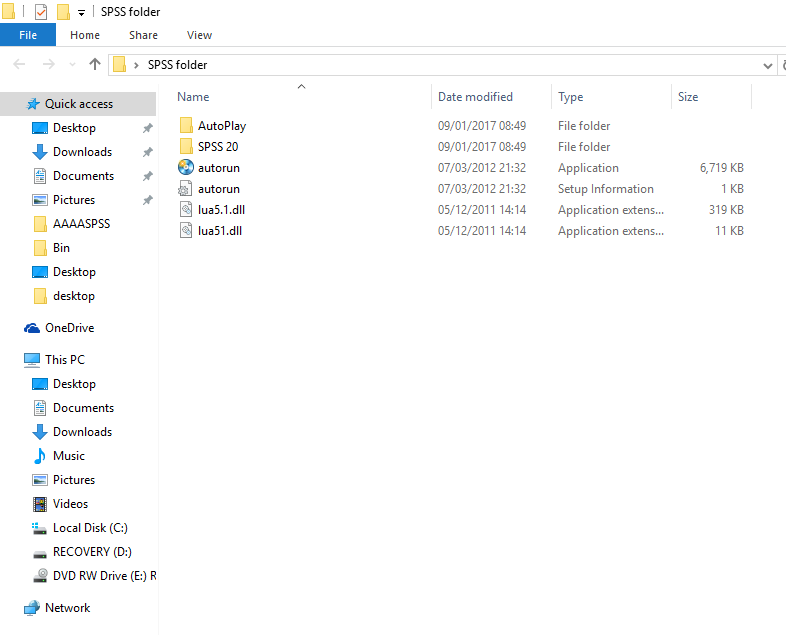
Step 3: Open the SPSS folder as shown in fig. 2
Step 4: Open the SPSS 20 folder inside the SPSS folder as shown in fig. 3
Step 5: Run the setup.part1 as administrator
Step 6: Fig. 4 will display and click install
Step 7: After clicking install fig. 5 will display.
Step 8: After fig. 5 finish loading it will display fig. 6
Step 9: In fig. 6 click 'I accept the terms' then click 'Next'.
Step 10: Fig. 7 will display click next
Step 11: Fig. 8 will be display, then click next
Step 12: Fig. 9 will be display, then click install
Step 13: Fig. 10 will be display then click Next it will display fig. 11
Step 14:In fig. 11 click Install, fig. 12 and Fig. 13 will be displayed showing the installation progress
Step 15: Fig. 14 will be displayed then click ok.
Step 16:Fig. 15 will be display to activate the SPSS click next then fig. 16 will be displayed
Step 17: Go to the SPSS 20 sub-folder inside the SPSS folder as shown in fig. 17
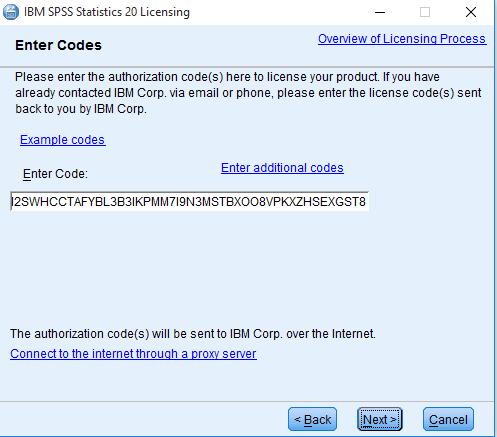
Step 18: Copy and paste it inside the ‘enter code’ column as shown in fig. 16 then click next.
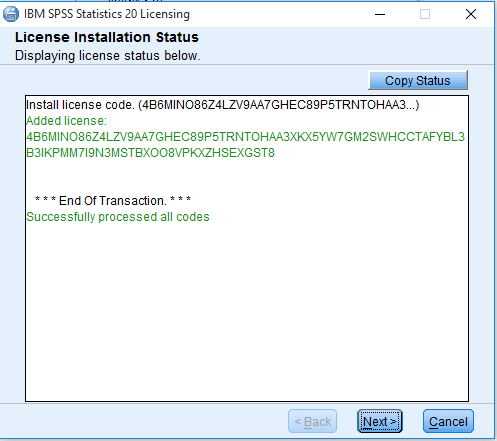
Step 19: Then fig. 19 will display, then click Next.
Step 20: Then fig. 20 will be display, then click ok


Fig. 2: 

Fig. 3 

Fig. 4
Fig. 5

Fig. 6: 


Fig. 7

Fig. 8

Fig. 9
Fig. 10
Fig. 11

Fig. 12
Fig. 13


                                                                                 Fig. 14


Fig. 15


Fig. 16
Fig. 17


Fig. 18

Fig. 19
Fig. 20
  Congratulation, you have successfully installed SPSS. Therefore, enjoy yourself!!!!
watch out for module 2 tomorrow ( 10th of January 2017) .

Feel free to ask any questions. pls make good use of the comment box. you can also contact me via:
Email: abataysoftwarewizard@gmail.com
phone no: 08130582034


Wednesday, 4 January 2017

30 ADDITIONAL RESEARCH TOPICS YOU CAN WORK ON USING SPSS

  • Risk assessment in residential construction project in Nigeria using SPSS.
  • Qualitative agricultural product analysis based on SPSS.
  • Analysis of Engineering education teaching in Nigeria based on SPSS
  • Statistical analysis of geochemical data.
  • Hybrid decision models in Non-proportional reinsurance.
  • Delamination in fiber reinforced plastics: a finite element approach.
  • Geo-statistical analyst for deciding optimal interpolation strategies for delineating compact zones.
  • Verification of chiller performance promotion and energy saving.
  • A comparison between theoretical and experimental coverage analysis in SG Cellular networks.
  • Steel pitting corrosion analysis, using a high vacuum epoxy penetration technique.
  • Microbiological analysis of sachet and tap water in Lagos state of Nigeria.
  • Assessing the sensitivity of climate change targets to policies of land use, energy demand, low carbon energy and population growth.
  • An application of wavelet analysis to meat consumption cycles.
  • The finite element approximation in hyperbolic equation and its application – the pollution of the water in the west of Nigeria as an example.
  • A comparison of methods to verify energy-saving benefits for chillers.
  • Analysis for stress environment in the alveolar sac model.
  • Analysis of pupils’ difficulties in solving questions related to fractions: the case study of school leaving examination in Nigeria.
  • Analysis and application of Hydro-power real- time performance calculation.
  • Integration of spatial analysis for Tsunami inundation and impact assessment
  • Assessment of groundwater quality monitoring network using cluster analysis, shib-Kuh plain, shur watershed, Iran.
  • The analysis of the noise generation in Gas Turbine stage.
  • Estimating a falsified model.
  • A new method for finding the Thevenin and Norton Equivalent Circuits.
  • Risk assessment methodology to support shutdown plant decision.
  • Statistical analysis of process monitoring data for software process improvement and application.
  • Endurance analysis of Automotive vehicle’s door W/H system using finite element analysis.
  • Behavior of a composite concrete-trapezoidal steel plate slab in fire.
This is just a tip of an iceberg in comparison with a whole lot of researches you can carried out using SPSS, more are still coming with their abstract immediately the class commences.Feel free to contact me on further explanation on those topics and help on your project work be it undergraduate or postgraduate.

WATCH OUT FOR 9TH OF JANUARY 2017


As the free online tutorial on SPSS is about to kick off, the following tools are required of you in preparation for the class:
  • A Personal computer of the following specification: at least 2GB RAM, 320 hard disk, dual core processor of 1.0GHZ and high battery capacity.
  • Raw file of SPSS, you can get it in any computer shop around you. You can also download online via http://softasm.com/?s=SPSS.
  • Supply your Email address via the comment box for submission of assignments.
  • Bookmark the blog address for easy asses to the site.


Stay prepared as it going to be educative, informative and upbuilding. feel free to mail us for any suggestions and questions. Also, if you have difficulty in getting the software contact us we would help you out.